
Service Application and Account Setup Process

3. Account Setup

Account settings (2) Charities information
- Verify the Charity name
- Select country/region
- Enter the Charity email address
- Enter the contact phone number
- Enter the responsible person’s name
- Upload the electronic signature or seal of the Charity’s responsible person (png, jpeg, jpg, gif format, less than 1 MB)
Account Settings (3) Theme Settings
- Upload the Charity logo image (png, jpeg, jpg, gif formats, less than 1 mb)
- Upload the banner image for the Charity internal page (png, jpeg, jpg, gif formats, less than 1 mb)
- Upload the background image for the charity’s dedicated page (png, jpeg, jpg, gif formats, less than 1 mb)
Account Settings (4) Donation Related Matters
- Select Currency
- Set Minimum Donation Limit
- Set Maximum Donation Limit
- Set Payment Method
- FPS / PayMe / Direct Deposit / Individual / Alipay / AlipayHK
- Enter payment details and upload screenshots of the receiving account for the applicable payment method, if required.
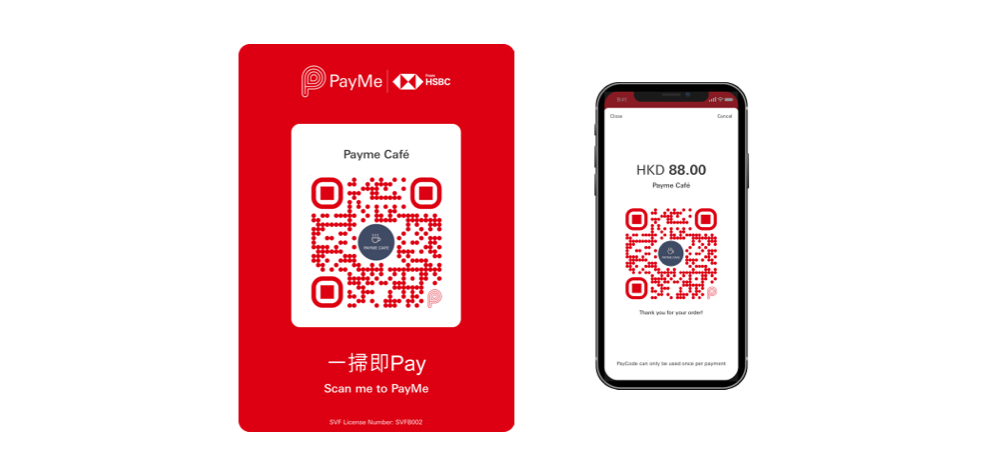
- Enter payment details and upload screenshots of the receiving account for the applicable payment method, if required.
- Credit Card
- Enter “Publishable Key” (provided by your Payment Asia/Stripe account)
- Enter “Secret Key” (provided by your Payment Asia/Stripe account)
- Press [Save]
- FPS / PayMe / Direct Deposit / Individual / Alipay / AlipayHK
Set a suitable donation cycle
- Select Country/Region
Account Settings (5) Add account administrator
Each charity has a specific account administrator to manage console items, with the option to add more administrators and general users as needed.
- Go to [Admin and Roles] > [Admin]
- Click [Create]
- Fill in the required information
- Select the [Active] box in the status bar
- Click [Save]
- Edit the newly added administrator page
- Assign the appropriate [Roles] *If no role option exists, the account administrator must manually set it in [Admin and Roles] > [Roles]
- Click [Save]
- Then go to [Admin and Roles] > [Roles]
- Click [Create]
- Enter the role name (e.g. Junior, Intermediate, Senior)
- Verify the role’s available permissions
- Click [Save]

